Add something the app missed
You just remembered the thing. Get it onto the list before it evaporates.
Do it
1. Tap the + circle — the round button beside the tab bar at the bottom right.
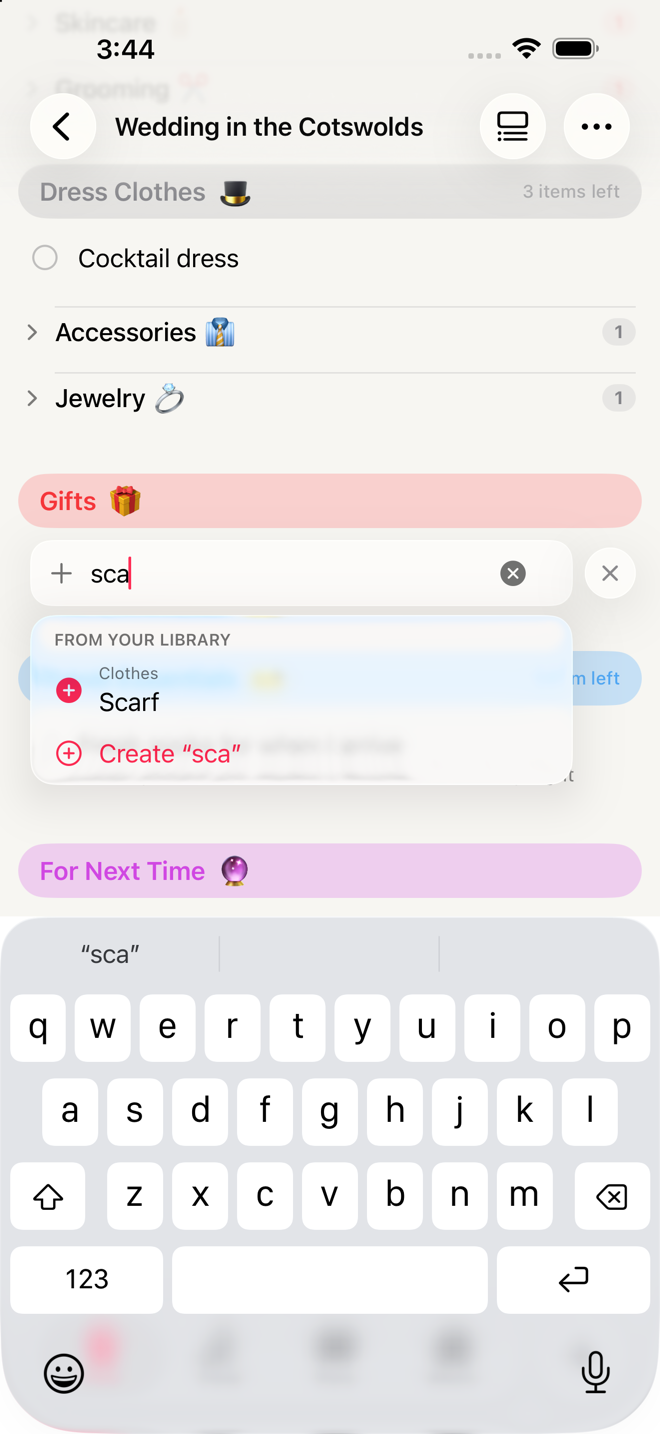
The add field opens at the top section currently on screen, right where the new row will go. There's no separate "add item" screen and no bar pinned to the keyboard; the field appears in the gap the item will occupy.
2. Start typing.
After two characters, suggestions appear:
- From your library — items you already have definitions for. Picking one brings its default note, its quantity rule, and whether it needs charging.
- In this trip — something you've already added elsewhere on this trip, captioned with where it came from (for example "from Beach Day"). Picking this links the two rows: they count as the same object, so checking one checks the other.
Create "whatever you typed"— always available at the bottom.
3. Press return.
The item lands and the field stays open and focused for the next one. That's deliberate: the expensive part of remembering isn't typing, it's the gap between remembering and recording.
4. Tap away when you're done — that commits whatever's in the field. Or tap the ✕ to throw the draft away.
Quantities: type them inline
Both of these work:
3 shirts
shirts x3
You get one row that says shirts, with a ×3 badge.
Two things to know before you rely on it:
The number only shows on physical items. Prep, Return and Plans create new entries as to-dos by default, not items — and a to-do never displays a quantity badge. Type "3 phone chargers" on the Return tab and you'll get a row reading "phone chargers" with no ×3 anywhere. The 3 was stored; it just isn't shown. If you need the number visible there, open the row's editor and change its type to Item.
A leading number breaks the search. "3 phone chargers" is matched against the library including the "3", so it finds nothing and offers to create a duplicate custom item. Type the name first, pick the library match, then adjust the number on the row.
Go deeper
Drag the + to place the item exactly
Instead of tapping the +, press and drag it. A line follows your finger through the list showing exactly where the item will land — including whether it's going inside a group or below it, which the line's indent tells you. Release, and the add field opens right there, already targeted.
This is the fast way to put something in the right group without adding it and then moving it.
Get it into your library so it's there next time
A Create "…" item exists only in this trip. It will not be suggested on the next one.
There is currently no button on a packing-list row that adds it to your library. Two routes that do work:
- Add it to the library directly. Settings → Item Library → +, and type it in there. A minute's work, and it's offered on every future trip. See The Item Library.
- Save the trip as a template. ••• → Save as Template keeps your one-off items inside that template, so any trip you start from it has them. Then, if you want one properly in the library, open the template, press and hold the item, and choose Add to Item Library. See Templates.
Make a whole new section
If you're adding six related things, they probably want a section of their own. Manage Sections → Custom Section (top right of the list). See Make the list shorter.
Add rows live at the bottom of every section too
The + circle is the fast path, but every section also has its own + Add Item row at the foot of its list. Tapping that opens the same field, targeted at that section.
If something looks wrong
The + isn't there. Two reasons: you're on a completed trip (which is read-only — reopen it from the ••• menu if you're within three days of the return date), or the keyboard is already up.
The item went into the wrong section. Open its editor and change the Section there. Rows on a packing list can't be dragged from one section to another.
I typed something and it vanished. Tapping the ✕ discards the draft rather than saving it. Tapping anywhere else commits it. If you meant to save and hit ✕, retype it — nothing is recoverable.
It added a second copy of something I already have. You typed a leading number, so the search missed the library match — see above. Delete one of them.
More in Guide