The Item Library
858 definitions of things. Teach it once, and every future trip knows.
What an item definition holds
Open any item (Settings → Item Library → tap it) and you get two blocks.
Classification
| Field | What it does |
|---|---|
| Name and Plural name | So "1 T-shirt" and "3 T-shirts" both read properly |
| Default note | The line under the name on every trip — this is where the app's best writing lives |
| Default Quantity | The rule for how many. See Quantity formulas |
| Type | Item · To-Do · Errand · Note |
| List | Which phase it belongs to — Prep, Pack, Travel, Plans, Return |
| Sections | Every section and kit it belongs to. At least one is required |
| Group | The group it files under inside a section (Tops, Shoes) |
Properties
| Field | What it does |
|---|---|
| Mark as Critical | Flags it on every trip and puts it in the Travel-day Double Check |
| Needs Charging and Charger Type | Puts it in the "Needs Charged" filter, tracks charge state |
| Needed on the way home | Whether it un-ticks when you reset for the journey back. On by default |
| Depends On | A parent item this one only makes sense with |
Relevance tags — trip type, weather, season, transport, duration — decide when the item appears at all. Unlike sections, items are opt-in: an item tagged International only turns up on a trip you've tagged International. Leave a tag empty and it means "always".
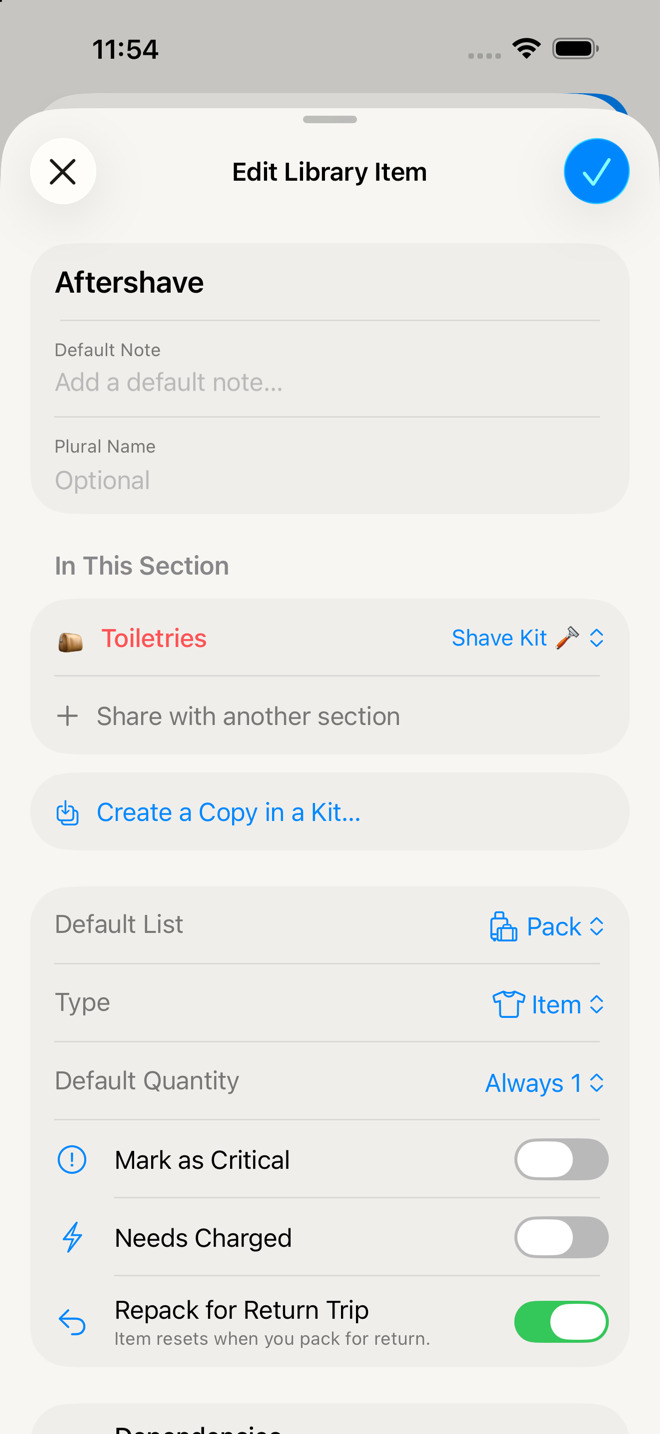
One item, several sections
The Sections row opens a picker with three groups: what it's currently assigned to, available sections, and available kits.
Assigning one item to two sections is what creates the linked pair you see on a packing list — the driver's license in both Wallet & Docs and On You, each captioned "Also in …", ticking together.
Assigning it to two kits does the opposite: two independent copies, because kits are bags. See Sections and kits.
Editing an item that lives in several places warns you first, naming the other sections and telling you the change applies everywhere it's used. Read that dialog — it's the difference between fixing one list and quietly changing five.
Dependencies
Depends On links an item to a parent it can't exist without. The classic pair in the shipped library: submit a mail hold on Prep and cancel the mail hold on Return.
Two things follow:
- If the parent never makes it onto a trip, the dependent doesn't either. No orphan "cancel the mail hold" on a weekend away.
- Deleting the parent on a trip offers to take the dependents with it, listing them first.
- A dependent only goes if nothing else still needs it. Delete a parent from your library and a to-do that depends on it as well as on something else stays — it's only the ones left with no reason to exist that are offered up, and you're asked before they go.
Making a new item
Settings → Item Library → +. Fill in the name, pick at least one section, and set the type. You can stop there — everything else has a working default.
Worth setting if you'll use it a lot:
- Default note for the thing you always forget about the thing
- Default Quantity so you never count it again
- Critical if losing it would ruin the trip
- Relevance tags so it only shows up when it's actually appropriate
Go deeper
Getting a one-off item from a trip into your library. There's no button on a packing-list row for this. The route that works: save the trip as a template, open the template, press and hold the item, and choose Add to Item Library. Or just add it here directly, which is usually quicker.
Filtering the library. Filter by Critical Only, Needs Charging, or by phase (Prep / Pack / Travel / Return), plus search and Clear Filters.
Archiving. Archived items stop appearing on new trips and move to Archived Items at the bottom of the library. Reversible.
Deleting is safe for your trips — but permanent for the library. Every trip holds its own frozen copy of everything, so deleting an item here cannot alter or break a trip that used it. It just won't be offered again.
Plural names matter more than you'd think. The library ships them because "3 Sunglasses" reads wrong and small wrongnesses are exactly what a tired brain snags on.
If something looks wrong
I changed an item and my current trip didn't update. Expected. The trip has its own copy. Change it on the trip too if you need it tonight.
The app warned me an item is "also in" other sections. It's one shared definition. Your change applies to all of them, on every future trip. If you only wanted it different in one place, use a per-kit override instead (Sections and kits).
I can't save — it says at least one section is required. Every item has to live somewhere. Assign it to a section or kit.
My new item never appears on trips. Two usual causes: its relevance tags are narrower than the trips you're making, or its phase isn't the one you're looking at.
An item shows no quantity. Only Items display a quantity badge. To-Dos, Errands and Notes never do — even when a number was stored. Change its type if you need the number visible.
More in Guide