Make the list shorter
The list starts too long on purpose. Cutting it down is the main skill.
Why it's long in the first place
Because remembering is harder than recognizing. A list that offers you sunscreen and hiking boots you don't need costs you two seconds of "no". A list that never mentioned them costs you a vacation without sunscreen.
So the app over-offers, deliberately, and hands you the cheap job.
Do it
The big cut: drop whole sections
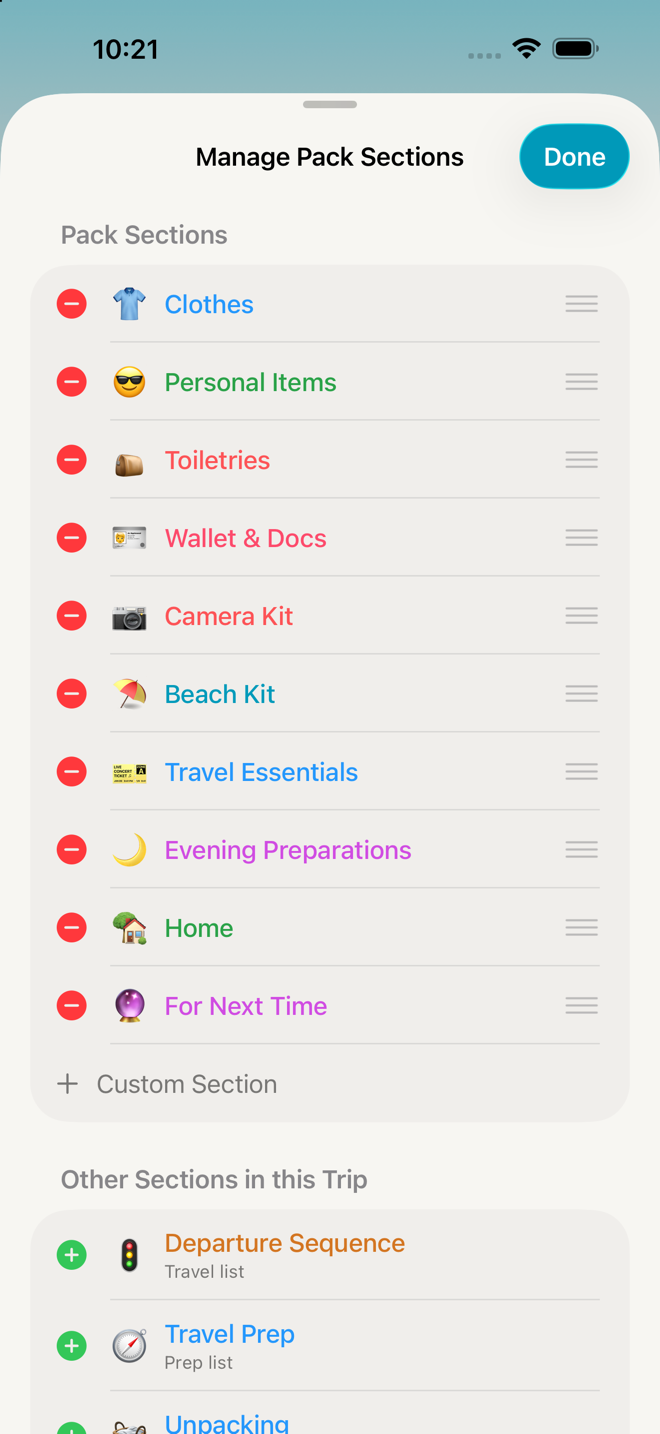
Tap the Manage Sections button at the top right of the list — the small list icon just left of the ••• menu.
It manages the phase you're currently on — the title says so: "Manage Pack Sections", "Manage Prep Sections". Switch tabs and open it again to work on a different phase.
- Red − beside a section removes it. You'll get one confirmation, because this can't be undone.
- Tap and hold a section to see a list of everything inside it before you decide.
- Drag to reorder — put what you actually pack first at the top.
- Below your current sections: Other Sections in this Trip (sections living on another phase that you can also add here), then Available Sections and Available Kits from your library. Tap + on any of them to add it.
- Custom Section at the bottom makes a new empty one of your own.
Removing a section removes its items from this trip. It does not remove it from your library, and it does not affect any other trip.
The Plans tab has no Manage Sections button. Add sections there with the Add Section row at the foot of the list instead — see The Plans phase.
The medium cut: delete items
Swipe an item row and tap Delete. There's no "are you sure" — packing items are the one place the app deliberately skips the confirmation, because at 11pm you want speed, not a dialogue.
Prefer to swipe the other way? Settings → Look & Feel → Swipe to Delete flips it to left or right.
Deleting an item can offer to take others with it. Some items depend on others — "Cancel mail hold" only makes sense if you submitted one. If you delete the item something else depends on, you'll be asked whether to delete just that one or its dependents too.
The free cut: collapse
Groups start collapsed. If you've opened a few and the screen has become a wall again, tap their rows to fold them shut. Collapsing is remembered for that section, so it stays that way when you come back.
The temporary cut: filter
When it's not that the list is too long but that it's too mixed — physical things tangled up with errands and tasks — narrow it:
••• → Filter, then pick any combination of:
| Filter | Shows |
|---|---|
| Critical Items | Only what you've flagged as unlosable |
| Needs Charged | Only things that need charging before you go |
| Items to Pack | Only physical objects |
| Errands to Run | Only errands |
| Things to Do | Only to-dos |
Filters stack — Critical plus Needs Charged shows only things that are both. Active filters appear as chips under the title; tap a chip's ✕ to drop it, or Clear All when two or more are on.
Filters are per-phase and per-visit. They change what you're looking at, never what's on the list.
The invisible cut: hide what's done
••• → Hide Completed is on by default: the list gets shorter as you work. Turn on Show Completed if you'd rather see your progress, or if you need to find something you ticked by mistake.
Ticked items leave together, not one by one. Each one you tick keeps its place with its checkmark showing until 1.7 seconds after your last tick, then they all go at once — so the list never shifts under your thumb while you're working down a section. Untick something and tick it again and it waits afresh.
Go deeper
Cut once, keep it cut. When you've got a trip trimmed to something that actually fits how you travel, ••• → Save as Template. Every future trip made from it starts at that length instead of the full one. This is the single biggest time saver in the app — see Templates.
Stop a section being offered at all. If a section is never right for you, archive it: Settings → Sections & Kits Library → open the section → Archive. It stops appearing when you make trips, and it's recoverable later.
Teach a section when to appear. Sections carry tags for trip type, weather, season, transport and trip length. Editing those changes what gets suggested next time rather than what's on the list today. See Sections and kits.
Cut a whole group at once. Swipe a group's header row for Delete All (removes the group and its items) or Ungroup (keeps the items, dissolves the heading).
If something looks wrong
I deleted one item and a second one disappeared. You said yes to deleting dependents. The prompt lists them, but it goes past fast — see When something looks wrong.
The same item is in two sections and I can only delete one. That's intentional: a driver's license genuinely lives in both Wallet & Docs and On You, and each copy carries the eyebrow "Also in …" to tell you. They're linked, so checking one checks the other, but deleting one deletes only that copy. If you want it gone entirely, delete both.
I removed a section and now an item elsewhere makes no sense. Some items assume a section exists. Nothing breaks, but you may find an orphan — delete it.
I want it back. Add the section again from ••• → Manage Sections; it comes back with its default items. Individual items you deleted are gone from this trip — re-add them with the + button, see Add something the app missed.
More in Guide