Pack for a weekend trip in five minutes
From an empty Home screen to a list you can work down.
Do it
1. On Home, tap "+ New Trip" (top right).
2. Type where you're going. Type "Lisbon" and the suitcase emoji becomes a tram. Type "Ski trip" and it becomes a skier. You don't have to accept it — tap the emoji to choose your own — but it's the fastest possible way to make a trip look like itself in a list.
Pick a color underneath if you like. If you skip it, you get blue.
3. Set Depart and Return. New trips default to tomorrow, for three nights. Change them if that's wrong — the dates matter more than they look, because they drive how many of each thing you're told to pack (see Quantity formulas) and which phase the app opens on later.
4. Tap the pills that apply. Four groups: Trip Type, Transportation, Weather, Season. Tap as many as fit in the first three; Season is single-choice.
These aren't decoration. They decide which lists get suggested to you on the next screen and which individual items make it onto your list — a passport only appears if you said International, mail hold only appears on a long trip. If you're unsure, tap the obvious ones and move on. A wrong pill here is not a problem you'll have to live with; you can change any of it from the trip's ••• menu afterwards.
5. Tap Next.
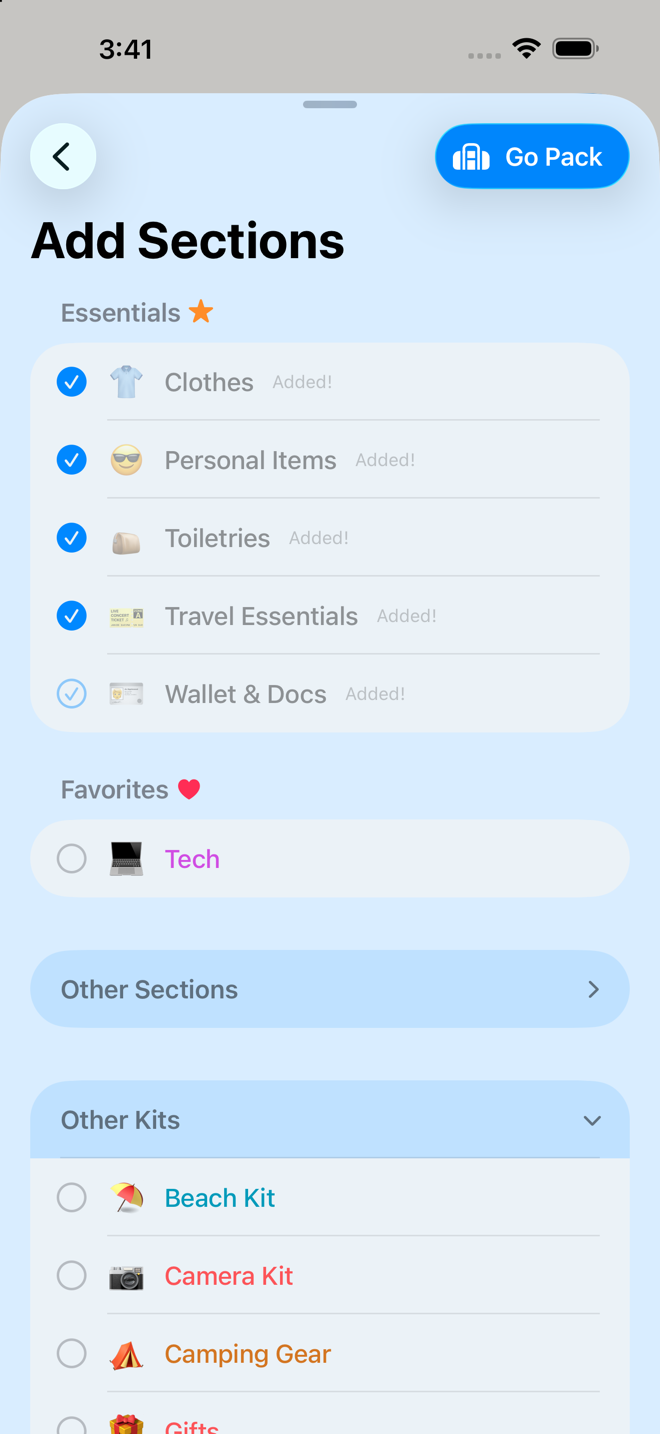
6. On "Add Sections", look — don't deliberate. Some lists are already ticked for you. They're the eight Essentials, minus any that don't match how you're traveling: they are the five that suit any trip, however you're traveling.
Below them: Favorites, then Other Sections and Other Kits as expandable rows. Tap a row to add or remove it. Press and hold to see what's inside — and that preview is filtered to your trip, so it lists what would actually come across rather than everything the section could hold.
One oddity to expect: ticked rows go gray and say "Added!", while unticked ones stay vivid. The dim ones are the ones you've got.
Add anything that's obviously relevant to this trip — Workout Gear, Camera Kit, Beach Kit. Skipping this entirely is a perfectly good choice; adding a section later takes two taps.
7. Tap Go Pack.
Your trip now exists, with a real list in it.
What just happened (two things worth knowing)
You got more lists than you picked. Alongside your choices, every trip automatically gets eleven lists you're never shown, because essentially every trip needs them:
| List | Where it lands |
|---|---|
| Travel Prep | Prep |
| Home | Prep and Travel |
| Evening Preparations | Pack |
| On You | Travel |
| Departure Sequence | Travel |
| Unpacking | Return |
| Activities · Notes to Self | Plans (both start empty) |
So if you ticked six lists and landed on sixteen, nothing has gone wrong. That's the eleven, plus yours. You can delete any of them — see Make the list shorter.
You may not have landed on Pack. The button says Go Pack, but the app opens whichever phase matches today's date: Prep if you're more than a day out, Pack the day before, Travel on the day itself. If you made a trip that starts today, you'll land on Travel and it will look like the wrong screen. It isn't — tap Pack in the tab bar at the bottom.
Now work the list
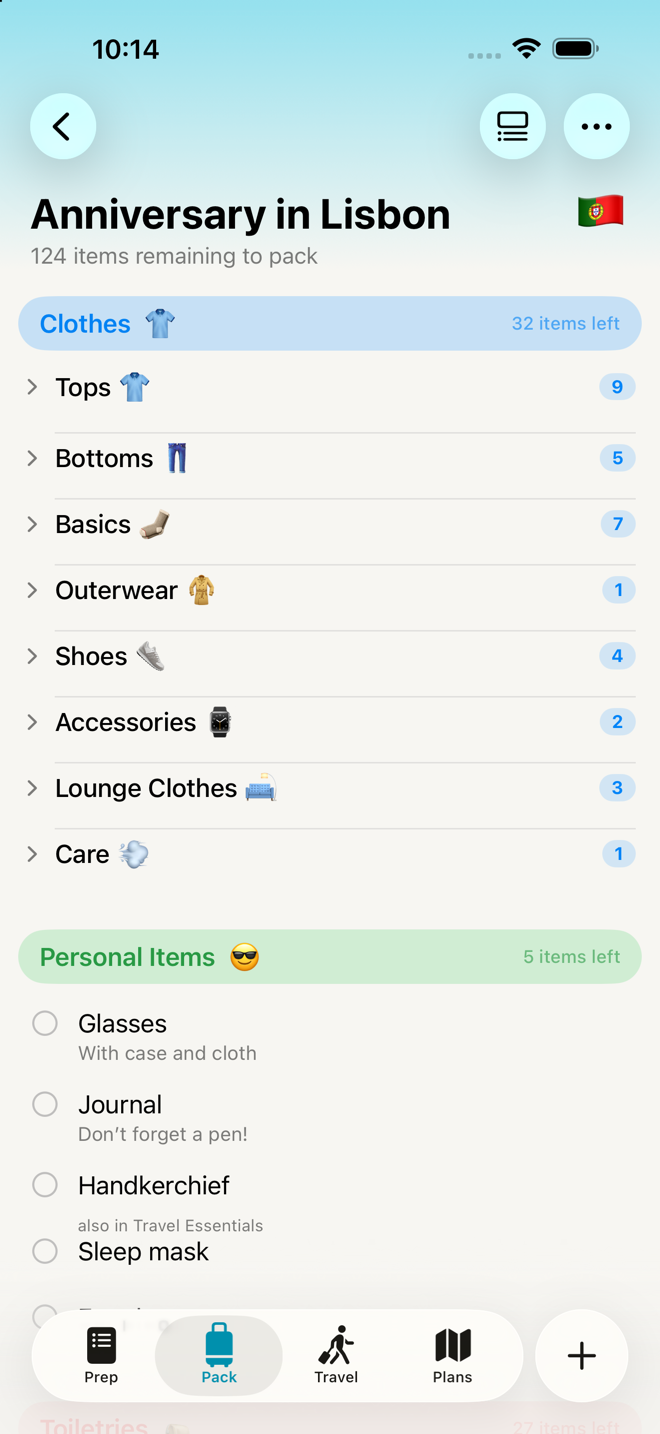
Open the Pack tab. What you're looking at:
- Colored pills are sections — Clothes, Toiletries, Tech. Each says how many items are left in it, and turns to "✓ Complete!" when you're done with it.
- Plain rows with a chevron are groups inside a section — Tops, Bottoms, Shoes. They start collapsed on purpose. Clothes is sixty-one garments; collapsed, it's eight rows you can take in at a glance. Tap one to open it.
- Everything else is an item. Tap its circle to check it off.
Work down it. Delete freely. The list was always meant to be too long — see Make the list shorter for the fastest ways to cut it, and Packing day for what happens when you start checking things off.
Go deeper
Start from a template instead. If you take the same kind of trip repeatedly, the fastest version of this whole page is: Home → the templates button (top right) → pick one → fill in the name and dates → Create. You skip the section-picking screen entirely, because the template already knows. See Templates.
Start from a trip you've already taken. Past Trips → ••• on any trip → Copy as New Trip. You get that trip's exact list, including everything you added and removed last time. See Past trips.
Plan a few outfits, if that's the part you get stuck on. The Plans tab has an Outfits block: name an outfit, add the garments, and each one lands on your packing list under its type, with the generic count adjusted so your total stays right. Nothing to switch on, and you can plan exactly one outfit and leave the rest of the trip alone. See Planning outfits.
If something looks wrong
The list is enormous and you feel the dread arriving. That's the intended starting state, and the intended response is deleting. Go to Make the list shorter. If you'd rather not look at it right now, collapse everything and walk away — nothing expires.
You landed on Travel, or Prep, when you expected Pack. See above; it's the date rule. Tap the tab you want.
A section you were expecting isn't there. It was probably filtered out by your pills — Overnight Journey is tagged for plane and train, so it stays out of a driving trip. Add it by hand: ••• → Manage Sections.
You picked the wrong dates. ••• → Edit Trip Details. Changing dates does not recalculate quantities on items already on your list — those were worked out when the trip was made. Check anything counted per-day.
More in Guide