Travel day and the Double Check
The last look before the door closes.
What Double Check is
Somewhere in a hundred-and-something item list are the six things that would actually ruin the trip: passport, medication, the charger for the thing you can't replace, the keys.
Every item you've marked Critical — plus the ones the library already ships as critical — is collected into a single panel pinned to the bottom of the Travel tab, below every section. Nothing to set up. It appears because you're on Travel and you have critical items.
It sits at the bottom on purpose. You work a list top to bottom, and this is the last gate before the door — so it's the last thing you meet. Its position is fixed: it isn't a section you can drag, and it stays put whether or not you have completed items hidden away above it.
The panel explains itself in place:
Items marked ⚠ Critical on your Pack List will appear here for a double check.
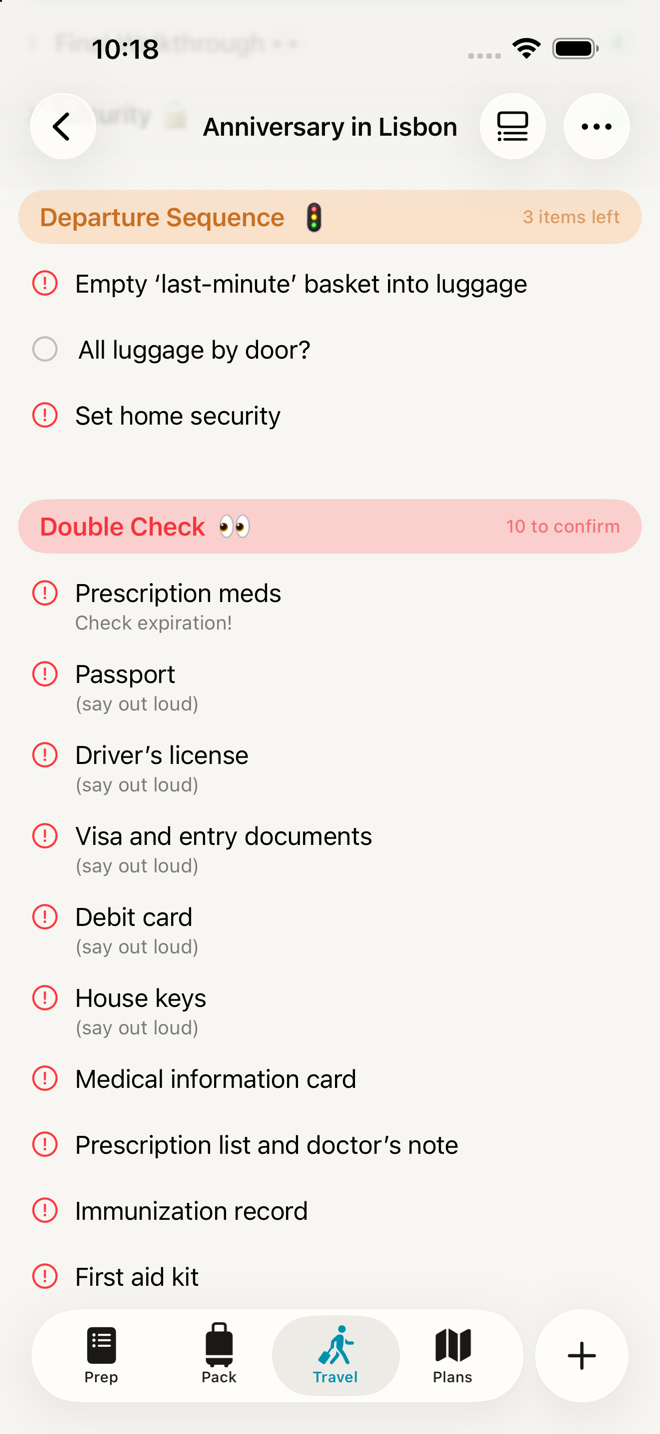
Do it
1. Open the Travel tab. On the day you're leaving, the app opens here by itself.
2. Work down the Double Check panel. For each row, physically look at the thing. Then tick it.
3. Note that this tick is not the packing tick. An item can be packed but not double-checked, or double-checked but not ticked as packed. They're separate on purpose — the whole point is a second, independent pass, and reusing the same tick would make it a formality.
4. Then do On You — wallet, phone, keys, glasses — and Departure Sequence, the last sweep of the house.
Marking things critical
Anything can be critical. Three ways to flag one:
- Swipe the row (the direction that isn't delete) → Mark Critical
- Press and hold the row → Mark Critical
- Open the item's editor and turn on the critical setting
Critical items show a red marker on the list, can be filtered to on their own (••• → Filter → Critical Items), and appear in Double Check.
Make something critical in your library and every future trip inherits it — Settings → Item Library → the item → mark it critical there. See The Item Library.
Go deeper
The same item can appear twice in Double Check, on purpose. If something is critical on both your Prep List and your Pack List, you get a row for each — they're different moments, and the app won't merge them.
Kit items each get their own row. Sunscreen from a Beach Kit and sunscreen from a Hiking Kit are two bottles, so they're two rows. Items that came from ordinary sections and are genuinely the same object collapse into one row.
You can turn the panel off. Settings → Packing Aids → Critical Double-Check. It's on by default. With it off, the Travel tab is just your Travel List.
If something looks wrong
A checklist item told me to "Filter by Critical Items in the upper right ☝️". That note is out of date — there's no Critical control in the upper right. It's in ••• → Filter → Critical Items.
More usefully: you don't need to do it at all. The Double Check panel on the Travel tab has already gathered exactly the items that note is asking you to go and find. Tick the note off and use the panel.
The Double Check panel isn't there. Three possibilities: you're not on the Travel tab; nothing on this trip is marked Critical yet; or the setting above is turned off.
I ticked something in Double Check and it didn't check off on the Pack List. Correct — they're independent. Double Check confirms you've seen it, not that you've packed it.
The Travel tab looks wrong for what I'm doing. If you're at the far end of the trip and packing to go home, you want the reset — see Coming home.
More in Guide