Do it again next time
You just spent an hour getting this list right. Keep it.
Do it
Save this trip as a template
1. ••• → Save as Template.
2. Give it a name. "Weekend away", "Work trip", "Beach with the kids". The emoji suggests itself from the name; the color is yours to pick.
3. Save.
From an active trip, that's it — you stay where you were, with a small confirmation. From a past trip (Past Trips → hold the row → Save as Template), you're taken straight into the template editor so you can tidy it while it's fresh.
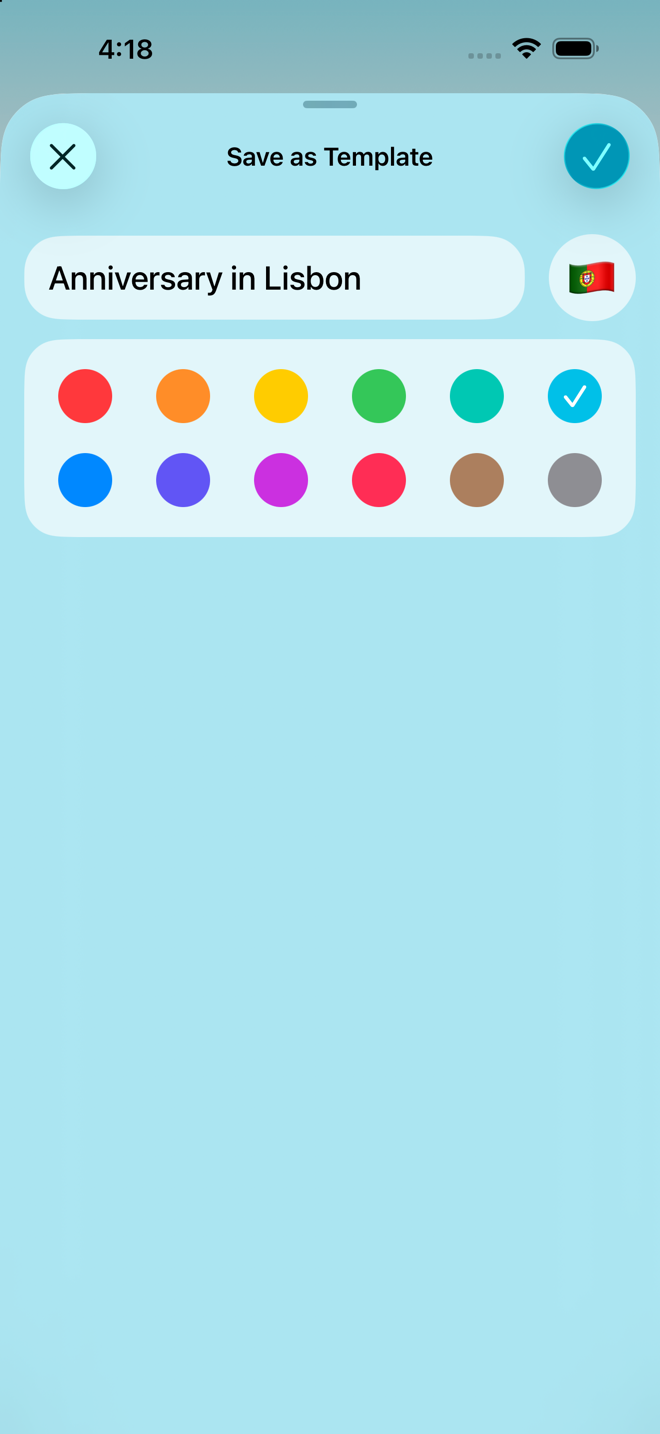
Your custom sections come with it. Anything you invented on this trip joins your Section Library as part of the save, so later trips can use it without you doing anything.
If a name is already taken, the sheet says so and gives you the choice on the spot — you don't leave the screen. This is rare, because the app stops most name clashes when you first name a section; it survives to the save when the section it matches is archived, or lives in another template. For each clashing section you pick one of four:
| What it does | |
|---|---|
| Merge Section & Items to Library | Folds this section and everything in it into the one you already have |
| Merge Section Only to Library | Keeps the section you already have as it is, and leaves these items out |
| Rename this Section | Give this one a different name and keep both |
| Don't Save with Template | Leaves it out of the template altogether |
Nothing is written until you tap Save, and canceling undoes all of it.
Use it
Home → the templates button (top right, beside + New Trip) → pick a template → fill in the trip name and dates → Create.
You skip the section-picking screen entirely, because the template already knows.
Pin the ones you use
In the Template Library, tap the heart on a template to favorite it. Favorites appear directly in Home's template menu, so a new trip is two taps from the Home screen.
You can control their order: Template Library → the Favorites ♥ header → Reorder. The app says exactly what this is for — "Reorder to set how your favorites appear in the Templates menu on your app's home screen."
Or don't bother with templates at all
Past Trips → press and hold a trip → Copy as New Trip.
You get that trip's exact list — everything you added, everything you deleted, every quantity you adjusted — as a brand-new trip. For "the same trip again", this is faster than templates and requires no maintenance.
Templates are better when you take variations of a trip repeatedly and want a clean starting point. Copying is better when you're literally doing the same thing again.
What a template keeps
| Kept | Not kept |
|---|---|
| Every section you chose, including custom ones | Departure and return dates |
| Every item, including ones you added yourself | The trip's name |
| Quantities, notes, custom names | Destination |
| Which items are critical, which need charging | What you'd checked off |
| The trip's tags — type, weather, transport, season | Plans day assignments |
The last row matters: a trip made from a template inherits the template's tags, so the app already knows it's a cold-weather international trip without you tapping the pills again.
Go deeper
There's a template in there you didn't make. Joan Didion's List — the packing list from The White Album, 1979 — ships archived, so look under Archived Templates rather than the main list. It's there partly as a joke and partly as a demonstration of how spare a list is allowed to be.
Edit a template properly. The template editor is phase-segmented like a trip — Prep, Pack, Travel, Return — and lets you add sections, add items from your library, reorder, and set per-item details. See Templates.
Promote a custom item into your library. In the template editor, press and hold an item you invented and choose Add to Item Library. This is currently the only route from "I made this up during a trip" to "the app offers it forever" — see The Item Library.
Archive templates you've outgrown rather than deleting them: hold → Archive Template. They're out of the way and recoverable.
If something looks wrong
My template made a trip with the wrong dates. Templates don't carry dates by design — a "weekend" template has no opinion about which weekend. Set them in the creation form.
Everything came back ticked off. It shouldn't — check state is never saved into a template. If you're seeing ticks, you copied a trip rather than using a template, and a copied trip does carry its own structure. Uncheck as you go, or start from a template instead.
I saved a template and can't find it. Home → templates button → All Templates. If it's still missing, check Archived Templates at the bottom of that screen.
I updated a template and my existing trips didn't change. That's the rule everywhere in this app: templates and libraries feed new trips. Trips already made are self-contained and never change underneath you. See How the app is organized.
More in Guide