Settings
Every switch, in plain language.
Libraries
| Row | What's in there |
|---|---|
| Template Library | Your reusable trip setups. Opened from Settings, tapping a template edits it rather than starting a trip — see Templates |
| Sections & Kits Library | Your 21 lists, plus Browse Kits and the archive — see Sections and kits |
| Item Library | All 858 item definitions — see The Item Library |
Packing Aids
Critical Double-Check — on by default
Whether the Travel tab gets its Double Check panel, gathering every critical item on your Pack list for a final look. Turning this off leaves Travel as an ordinary list. See Travel day and the Double Check.
Look & Feel
| Setting | Options |
|---|---|
| Font | SF Rounded (default) · SF Pro · New York |
| Text Size | Smaller · Default · Larger · Largest |
| Theme | System · Light · Dark |
| Swipe to Delete | ← Left · Right → |
Swipe to Delete sets which side of a row the delete action sits on. Everything else swaps to the other side.
If you never picked a font, the app uses SF Rounded. Choosing one — SF Pro included — keeps your choice.
Text Size steps the whole app relative to your iPhone's own text size — it's not an override. If you've already made text bigger system-wide, you keep that head start and this moves you further from it. Rows, pills and section headers all grow with it.
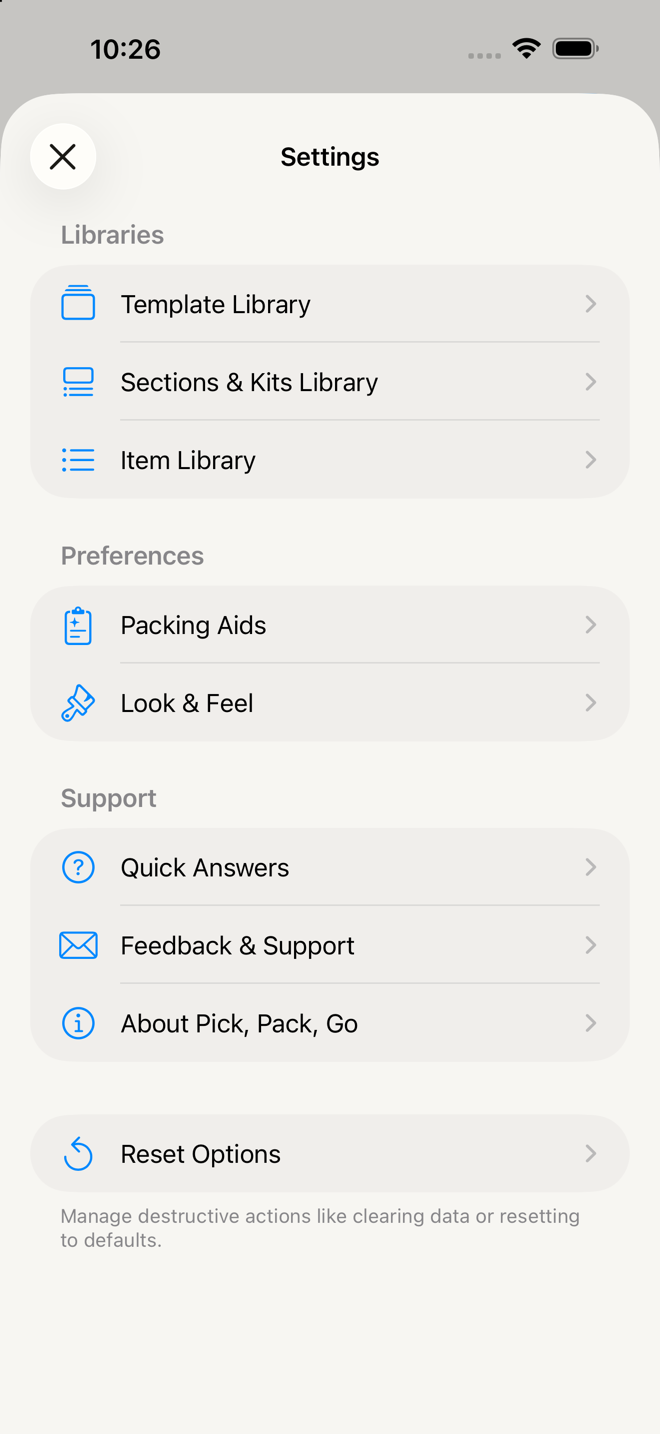
Support
About — the version number, plus the Privacy Policy and Terms & Conditions, which open inside the app.
Reset Options
Behind its own screen, described as "Manage destructive actions like clearing data or resetting to defaults." Three rows:
| Action | What it does |
|---|---|
| Export Library Data | Writes your libraries out as a CSV you can keep |
| Reset Libraries to Defaults | Rebuilds your libraries from the defaults. Everything in them goes, including your templates and anything you've added, renamed or archived. Trips are kept |
| Delete All Trip History | Deletes your trips. Your libraries are not touched |
Reset Libraries takes your templates too. That surprises people, so it's worth saying plainly: the reset clears all three libraries — templates, sections and kits, items — and builds them back the way they shipped. A template you made yourself does not come through it, and neither do custom sections, custom items, renames, or anything you'd archived. Your trips are kept, and each one holds its own copy of what's on it, so they still read correctly afterwards.
Both resets ask for confirmation and neither can be undone. Export Library Data first if there's any chance you'll want what's in there — it writes everything, templates included, to a CSV.
It's an archive, not a backup. The file is yours to read and keep, but the app can't import it back. Exporting before a reset preserves a record of what you had; it doesn't let you undo the reset.
One warning about that screen's warning. The gray note under both buttons reads "This will permanently delete all past, current, and upcoming trips and their packing lists." That's only true of Delete All Trip History. Resetting your libraries does not delete trips — your trips keep their own copy of everything and come through untouched. Go by the confirmation dialog, which is accurate for each action.
Go deeper
What isn't in Settings, and why.
- No account or sign-in. There's nothing to log into.
- No sync settings. Your data lives on this iPhone, and is included in its iCloud device backup. Restoring a new phone from backup brings everything. Two phones will not stay in step.
- No notification settings. The app never notifies you about anything.
- No export or backup button. Your only copy is your device backup. Worth knowing before you use Reset Options.
If something looks wrong
I'm looking for the "Plan clothes by outfit" switch. It's gone. Outfit planning moved to the Plans tab and needs nothing switched on — every trip has an Outfits block. See Planning outfits.
I changed Text Size and a sheet didn't follow. It should — the setting applies at the window level, so sheets, menus and lists all inherit it. If something looks unchanged, close and reopen it.
I reset my libraries and lost my custom sections. That's what "reset to defaults" means, and it can't be undone. It takes your templates with it as well — the reset clears all three libraries. Your trips are kept, and each keeps its own copy of everything on it.
Where's the setting for _____? If it isn't on that screen, it probably isn't in the app. See the list above.
More in Guide