Sections and kits
Where the 36 starting lists come from, and how to make them yours.
What's in the box
| Count | Examples | |
|---|---|---|
| Sections | 19 | Clothes, Toiletries, Personal Items, Wallet & Docs, Tech, Home, Travel Essentials |
| Kits | 17 | Camera Kit, Makeup Kit, Hiking Gear, Ski Gear, Beach Kit, Baby Gear, Golf Gear |
Between them they hold 858 distinct items.
Five are Essentials, pre-ticked when you make a trip: Clothes, Personal Items, Toiletries, Wallet & Docs, Travel Essentials. None of them carries relevance tags, so all five are offered on every trip — the separate Plane, Car and Train sections were folded into Travel Essentials.
One ships as a Favorite: Tech.
Eleven never appear in the picker at all because every trip gets them automatically — Travel Prep, Home, Evening Preparations, On You, Departure Sequence, Unpacking, Activities, Notes to Self.
Section or kit?
The setting is a two-way switch at the top of the editor, and it changes one thing: whether items inside are shared with the rest of the trip.
A section shares. Lip balm sits in both Toiletries and Travel Essentials, and it's one lip balm — tick it in either place and it's ticked in both. Both rows say "Also in …", ticking one ticks the other, editing one edits both.
A kit doesn't. Sunscreen in the Beach Kit and sunscreen in the Hiking Gear kit are two bottles. They tick separately and you pack both, which is correct — they live in different bags.
Rule of thumb: if you'd physically pick the whole thing up and put it in the car, it's a kit.
Priority: what gets offered when
Set in the section editor, three options:
| Priority | What it does | Where it shows |
|---|---|---|
| Essential ⭐ | Pre-ticked on every new trip | Top of Add Sections, already selected |
| Favorite ♥ | Your personal go-tos | Second group, easy to reach |
| No Priority | The default | Offered under Other Sections / Other Kits when relevant |
If you find yourself adding the same kit to every trip, make it Essential and stop deciding.
Tags: when a section is relevant
Every section can carry tags across five axes — trip type, weather, season, transportation, duration. They control which sections get suggested for a trip.
Leaving a tag empty means "always relevant." Not "never" — empty is the permissive setting.
Two behaviors worth knowing, because they're deliberately different:
- A section is never hidden by its tags. A non-matching section drops to the "other" groups but stays available. You can always add anything.
- An item can be hidden by its tags. A passport only materialises on a trip tagged International; a mail-hold task only on a long trip. Items are opt-in.
Transportation is the one exception that can genuinely exclude a section from the suggested groups — Overnight Journey, which is tagged for plane and train, on a road trip.
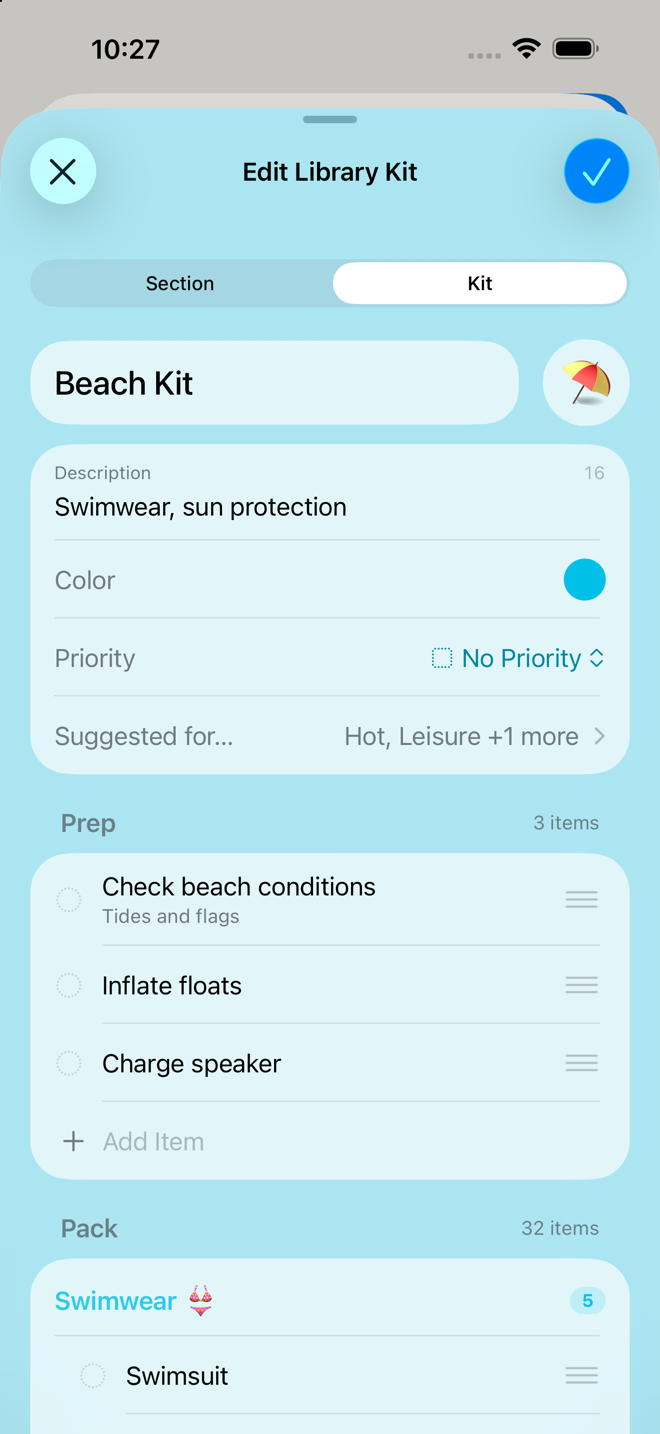
Making your own
Settings → Sections & Kits Library → +
- Name, emoji, color, description
- Section or Kit
- Priority
- Relevance tags
- Items, added inline — type a name and either pick a library match (which adds it by reference, no duplicate created) or take the
Create "…"option to make a brand-new item
Items are organized per phase inside the editor, so you can decide that your "Race Day" kit puts some things on Prep and others on Pack.
You can also make a section for one trip only: Manage Sections → Custom Section. It lives in that trip and stays out of your library — until you save that trip as a template. Saving a trip as a template adds its custom sections to your Section Library, so the next trip you build can use them.
Two sections can't share a name. The emoji doesn't make them different: if you already have a Golf section, a second one has to be called something else. The app catches this as you type and offers you the one you already have instead of making a second. This applies when you make a section, when you edit a template, and when saving a trip as a template promotes one into your library. Pairs you created before this rule existed are left alone — nothing is merged or renamed behind you.
Browsing and editing kits
Sections & Kits Library → Browse Kits — described in the app as "Add activity and specialty gear" — shows each kit with everything inside it and lets you set per-kit defaults.
That last part is the useful bit: the same item can carry different defaults in different kits. Sunscreen might be ×1 in the Beach Kit and ×2 in Ski Gear, with a different note on each. Those overrides live on the kit, not on the item, so they don't leak anywhere else. A customized entry is labeled "Customized for [kit name]".
Go deeper
Filtering the library. The library's filter covers Sections, Kits, Favorites, Essentials, No Priority, and which phase a list feeds (Prep / Pack / Travel / Return), plus a search field and Clear All.
Archiving. Open a section → Archive. It stops being offered on new trips and moves to Archived Sections & Kits at the bottom of the library. Nothing is lost and existing trips are untouched. This is the right move for "I'll never use Golf Gear" — better than deleting, which is permanent.
Groups inside a section. Items can be grouped (Tops, Bottoms, Shoes), and groups are what make a big section readable, since they arrive collapsed. Add groups as you add items in the editor.
Deleting a library section is safe for your trips. Every trip keeps its own copy of everything, so nothing on a trip changes.
It does reach your templates, though. An item whose only home was that section leaves your library, and so it leaves every template holding it — the warning counts them before you confirm. Items that also live in another section or kit stay put. Deleting Golf Gear from the library does not alter, break, or empty a trip that used it.
If something looks wrong
I added a section to my trip and it was empty. Sections show items only on the phases those items belong to. A section whose items all live on Pack looks empty from Prep.
An item I expected didn't come across. It was probably filtered out by your trip's tags. Add it by hand with the +, or loosen the item's tags in the Item Library so it applies more widely.
I edited a section and my current trip didn't change. Expected. Library edits reach the next trip you make. See How the app is organized.
Two copies of the same thing keep appearing. They're in two kits, which don't share by design. If they should be one thing, move them into sections instead.
I can't find a section I made. Check the library's filter — if Kits is selected and you made a section, it won't be listed. Then check Archived.
More in Guide