Planning outfits
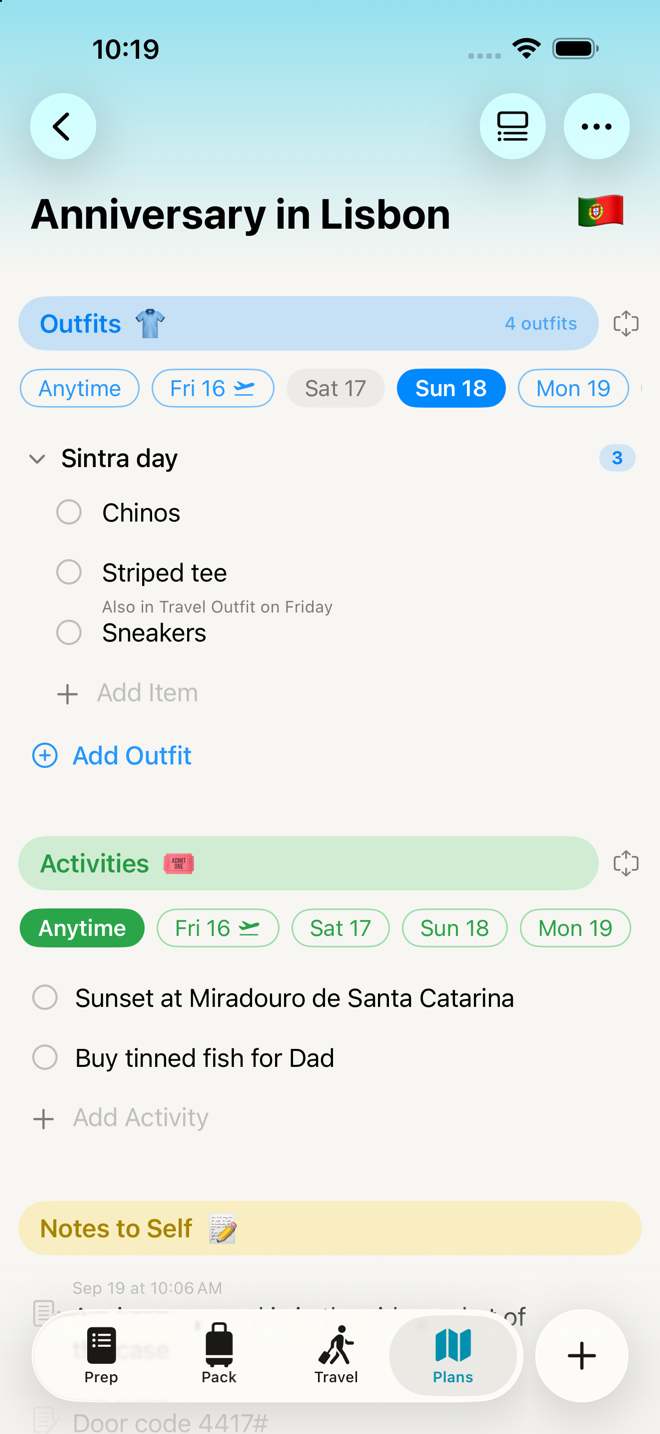
Decide what you're wearing on Plans. The packing list files it by type.
Why it works this way
There's an obvious-sounding version of this feature where your packing list becomes your outfits: Monday's outfit, Tuesday's outfit, each with a shirt and a pair of trousers in it. This app had that version. It was scrapped.
The reason is retrieval. Most people store clothes by type — shirts with shirts, jeans with jeans. A list organized by outfit sends you back to the same drawer six separate times, once per day of the trip. A list organized by type sends you to the shirts once and you take all four.
So the two jobs got separated. Plans answers "what am I wearing on Thursday." The packing list answers "what do I take out of this cupboard." They're the same clothes, viewed the way each task actually needs them.
Do it
- Open the Plans tab and find the Outfits block.
- Tap Add Outfit. A sheet slides up with a name already filled in, taken from the next unplanned day of your trip — "Monday's Outfit". Change it or keep it.
- Add as many garments as you want. Type each one and hit return.
- Tap the checkmark to confirm. Everything commits at once: the outfit appears on Plans, and every garment appears on your packing list under its type.
Cancel writes nothing. Not the outfit, not the garments, not a single change to your packing list. This is the one sheet in the app that works that way, and it's deliberate — it's touching your real packing list, so backing out has to mean backing out.
What happens on the packing list
Type "navy t-shirt" into an outfit and it appears under Tops 👕 on the Pack tab. Type "black jeans" and it goes to Bottoms 👖. "white sneakers" goes to Shoes 👟.
The app works this out from a lookup table of garment names — a few hundred terms plus their plurals, regional variants and common aliases. It reads the end of what you typed, so "the good sneakers", "chunky knit sweater" and "black jeans" all resolve correctly without you having to phrase anything a particular way.
It doesn't always know. Roughly one name in twelve isn't in the table — brand names used as the whole name ("Birkenstocks"), formal or non-Western garments, and anything that isn't really a garment at all ("sunglasses", "umbrella"). When it doesn't know, it says nothing and files the item loose at the bottom of your Clothes section. It's still on your list, still checkable, just not in a group. That's a deliberate choice over guessing: a confident wrong answer buries a shirt in the wrong place, and a quiet miss leaves it somewhere you'll see it.
The count that goes down
This is the part worth understanding, because it's doing something for you quietly.
Your Clothes section arrives with generic counts — T-shirt ×3, Jeans ×2 — worked out from the length of the trip. When you plan a specific navy T-shirt, one of those three generic shirts is now spoken for. So the app takes it off the count:
Before you plan anything          After you plan a navy T-shirt
  Tops 👕                            Tops 👕
    T-shirt ×3                         T-shirt ×2
                                       Navy T-shirt      worn 1 time
Three shirts, still three shirts. You've just said what one of them is.
Delete the navy T-shirt and the count goes back up. Nothing is destroyed by planning an outfit — that's the whole point of doing it this way. An earlier version of this feature emptied the group instead, and it was scrapped for a reason worth stating plainly: if planning one outfit for a rehearsal dinner wipes out the rest of your clothes, you will forget something. You should be able to plan exactly one outfit and leave the rest of the trip alone.
One honest limit: if the count was already down to its last one, planning it removes the row entirely — and deleting your planned garment afterwards won't rebuild it. That's on purpose too. A row that resurrects itself after you delete it reads as the app fighting you, with no explanation on screen for why the thing keeps coming back. Easier to re-add one obvious item than to argue with a list.
What never decrements
Basics and Accessories are never touched. Plan a specific pair of underwear for a particular outfit and your daily count of underwear stays exactly where it was. Same for belts and watches.
The reasoning: naming a specific garment is sometimes a replacement for the generic default and sometimes an addition to it. A named shirt replaces a generic shirt. A particular pair of underwear chosen to go under one dress does not mean you've stopped wanting the ordinary ones for the rest of the week. Tops, bottoms, outerwear, lounge clothes and shoes swap; basics and accessories add.
And when it's a close call, the app leaves the count alone. Taking one off when it shouldn't have means you under-pack, which is the exact failure this whole app exists to prevent. Leaving one on when it could have come off means one extra row you can swipe away in a second. Those aren't equally bad, so they aren't treated equally.
Wearing the same thing twice
Put a garment into a second outfit and the app keeps it as one row on your packing list, worn on two days — not two shirts to pack.
How to get that: start typing the garment's name in the second outfit's Add Item row and tap it in the In this trip suggestions that appear. Tapping the suggestion links them.
Typing it out fresh instead means something different, and that's on purpose. If you were offered the link and didn't take it, you're telling the app these are two different shirts — so it counts them: one row reading Blue oxford ×2. Not two identical rows stacked on each other, which reads like a bug.
The two together tell the whole story:
| What you see | What it means |
|---|---|
| Blue oxford, worn 2 times | One shirt, worn on two days |
| Blue oxford ×2 | Two shirts |
| Blue oxford ×2, worn 2 times | Two shirts, each worn once |
The worn N times line only appears from two wears up. A garment in one outfit says nothing.
The Anytime bucket
The first pill in the day rail is Anytime, and it's for anything you're bringing that isn't tied to a day — sweatpants for the hotel pool, a swimsuit you might use, the jumper that lives in your bag.
It behaves like any other outfit: add garments to it, they file onto your packing list by type, they decrement the same way. It just isn't a day. It's always there, and it appears the first time you use it.
Naming an ordinary outfit "Anytime" does not turn it into the bucket. It's an ordinary outfit that happens to share a label, exactly like two outfits both called "Beach Day".
Go deeper
Compact or expanded. The control beside the Outfits heading switches between one outfit at a time (with day pills) and all of them at once. Your choice is remembered for that trip.
An outfit's day is its position, not its name. The first outfit is the first day. Rename "Monday's Outfit" to "Rehearsal dinner" and it's still the first day.
The tick means "I've worn this." It's separate from packing and never touches your packing list. A worn garment stays visible, struck through, so an outfit doesn't empty out as the trip goes on. The badge on the block counts what's still unworn.
Press and hold an outfit's name for Rename Outfit and Delete Outfit. Press and hold a garment for Edit Item, Remove from Outfit and Delete from Trip.
Outfits don't survive into a template. They're specific to one trip's dates and one trip's plans. If you want the same plan again, copy the whole trip instead — see Past trips.
Shorten a trip and nothing is lost. An outfit planned for a day the trip no longer has moves to Anytime rather than sitting on a day that isn't there. It keeps everything in it — find it under the Anytime pill and put it back on a real day whenever you like.
If something looks wrong
A garment I typed is loose at the bottom of Clothes, not in a group. The app didn't recognize the name. It's still on your list and still counts — it just has no type group. Rename it to something more ordinary if you want it filed, or leave it where it is.
My generic count went down and I didn't expect it. That's the decrement doing its job: one of those generic shirts is now the specific shirt you named. If it took one off the wrong row — two similar items can share a name in the table — just change the quantity back by tapping the count.
I planned a specific pair of socks and nothing changed. Correct. Basics and Accessories never decrement.
I deleted a planned garment and the count didn't come back. The row it took from is gone entirely — it had been down to its last one. Add it back by hand.
I removed a garment from its only outfit and the app asked me a question. It wants to know whether the garment goes with the outfit:
You've removed [item] from all outfits. Do you still want to bring [item] on your trip?
Keep on Packing List leaves it where it is, in its type group. Delete from Trip removes it. Cancel puts it back in the outfit.
I deleted a garment from the packing list and got a warning. It's worn in more than one outfit, so deleting the row removes it from all of them. There's only one row for it, so there's no way to delete "just Thursday's" from the packing list — do that from Plans instead.
I ticked a garment on Plans and it didn't check off on Pack. Right. Worn and packed are separate marks, on purpose.
I can't drag my outfits into a different order. Nothing in the app reorders any more — it was removed across the board. Rename them instead; the name is a label, and it's yours.
More in Guide