Coming home
The riskiest room you'll ever pack in is a hotel room, not your own bedroom.
Why this exists
At home you have a routine, a drawer you always check, and a door you always come back through. In a hotel room you have none of that, plus a checkout time. It's where things get left behind.
The app already knows what you brought. So instead of asking you to remember it a second time, it un-ticks the things that need to come home and hands you the same list again.
Do it
The way it usually happens
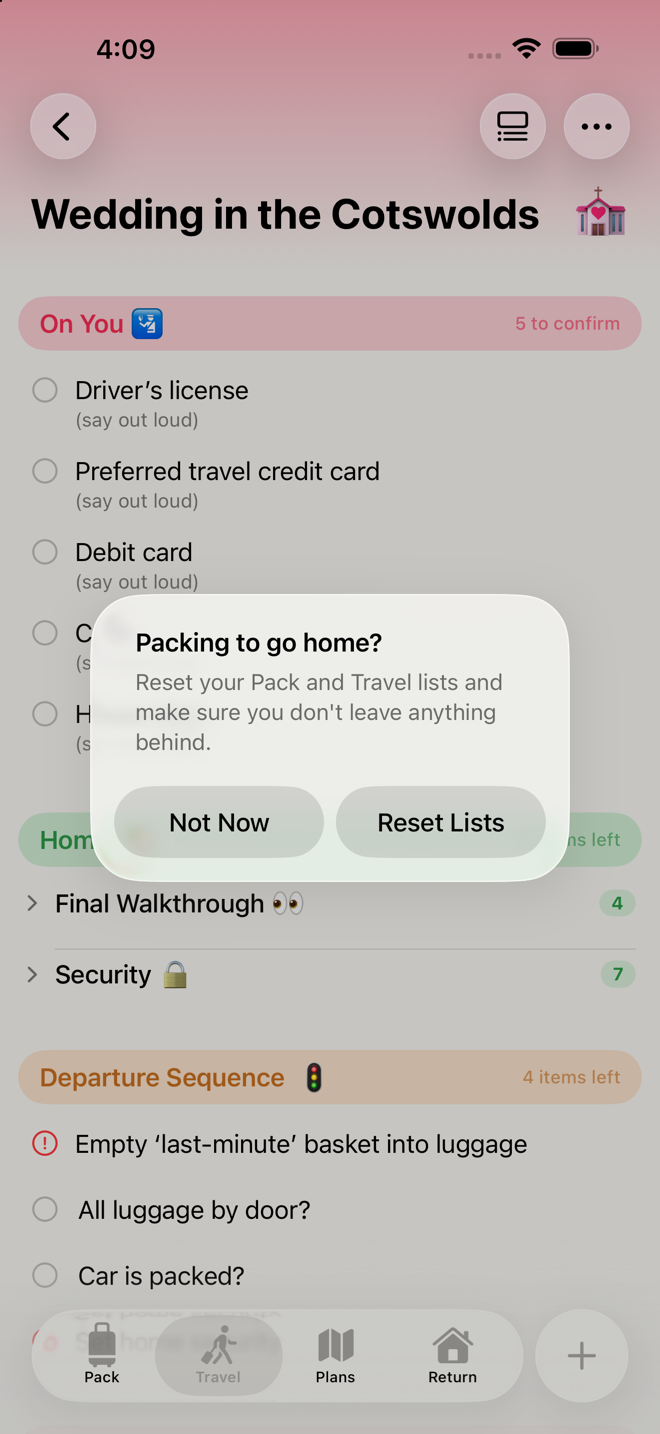
Open the trip on or after the day before your return date and you'll be asked:
Packing to go home? Reset your Pack and Travel lists and make sure you don't leave anything behind.
Reset Lists · Not Now
Tap Reset Lists. Your Pack and Travel lists come back unticked, and you work through them again.
Saying Not Now costs you nothing — the action stays in the menu for the rest of the trip.
The way you do it on purpose
••• → Pack for Return, any time, as often as you want. You'll be asked to confirm:
Reset Pack and Travel lists? Everything you'll need again on the way home is unchecked, so you can work through Pack and Travel a second time. Tasks that only apply at home stay ticked. This can't be undone.
That "as often as you want" matters. If the trip is four cities and four hotels, reset at each one.
What comes back and what doesn't
Every item carries a Needed on the way home setting. It's on by default — almost everything you brought needs to go home with you.
The exceptions are the things that only ever made sense at your own house. Nineteen items in the standard library are set to stay ticked, and they're the ones you'd expect:
- Evening Preparations — running the dishwasher, staging the luggage by the door, preparing the "last-minute" basket
- Home — lights off, utilities down, appliances off, bins out, and every lock: front door, back door, sliding door, garage, windows, the car, the key with your neighbor
- Departure Sequence — all four of them. There is no departure sequence from a hotel.
Change it for one item: open the item's editor on the Pack List or Travel List and turn Needed on the way home off (or on). The setting only appears on those two phases, because it does nothing anywhere else.
Change it for every future trip: Settings → Item Library → the item → same setting there.
A reset never changes which tabs you're looking at. It un-ticks things; that's all it does.
The tab bar changes shape
There are five phases but only four tabs — five named tabs plus the + button won't fit without iOS hiding some in an overflow list, which would be worse.
So Prep and Return trade places. Up to the day you arrive home you see Prep, Pack, Travel, Plans. The day after your return date, Prep steps out and Return steps in.
Nothing is ever unreachable. ••• → Phases lists all five; picking the hidden one swaps it back in for the rest of your visit.
Go deeper
The Return List is for landing, not for packing. Unpacking, laundry, and whatever else you want waiting for you. Anything you add here is worth two minutes while it's fresh.
Turn this trip into next trip. The single most valuable moment to save a template is right after you get home, when you know exactly what you over-packed. ••• → Save as Template. See Do it again next time.
Mark the trip complete when you're done. ••• → Mark Trip Complete moves it into Past Trips and makes it read-only. If you forget, the app will ask you on the Home screen three days after your return date: "Mark [trip] complete?" — with a count of anything still unticked.
If something looks wrong
The reset unticked something I wanted to stay ticked. That item is set to come home. Open it and turn off Needed on the way home — then reset again if you need to.
A house task got unticked. The opposite case: it's set to repeat when it shouldn't. Same fix, in reverse. If it's a standard library item, fix it in the Item Library too so it's right next time.
The Return tab isn't there. You haven't reached the day after your return date yet. ••• → Phases → Return gets you there now.
Prep disappeared. It swapped out for Return. Same menu brings it back.
I reset by accident. There's no undo. Your items are all still there — they're just unticked, so you'll need to re-tick what was already done.
More in Guide